



CoD Mobile Sensitivity Guide: Phone, Tablet, Deadzones & ADS
CoD Mobile — Sensitivity Guide (Phone + Tablet): Deadzones, Curves, Control
Good aim in Call of Duty: Mobile is not just about fast thumbs. It is about building a control setup that lets your hands repeat the same motion under pressure. That sounds obvious, but most players still tune sensitivity in the wrong order. They copy a creator’s numbers, jump into ranked, feel “off,” then raise or lower everything at once until the whole setup becomes random. The result is familiar: overflicking at midrange, underturning on close pushes, shaky sniper corrections, inconsistent tracking, and a constant feeling that your settings are fighting you instead of helping you.
A strong CoD Mobile sensitivity setup does the opposite. It makes recoil easier to read. It helps your centering stay calm. It keeps your camera stable when you clear corners and responsive when you need a snap turn. Most importantly, it reduces the number of mechanical mistakes you make when your brain is already busy with positioning, timing, footsteps, minimap reads, and target priority.
This guide is built to be timeless. Instead of chasing a seasonal “best sensitivity code,” it explains the principles that stay useful across updates, maps, and devices. You will learn how to think about camera sensitivity, ADS sensitivity, deadzones, response curves, gyro, layout spacing, and phone-versus-tablet differences in a way that helps you tune your own controls. The goal is not to produce one magical number. The goal is to create a system that feels stable enough to trust in Multiplayer, Battle Royale, and long ranked sessions.
If you are new to the game, this will help you avoid months of bad habits. If you already play ranked, it will help you clean up hidden issues in your current setup. And if your mechanics are good but you still want a faster climb, you can also check Boosteria’s CoD Mobile boost prices while continuing to sharpen your own aim fundamentals.
Table of Contents
- Why Sensitivity Matters More on Mobile
- Core Terms: Camera, ADS, Deadzones, Curves, Gyro
- Phone vs Tablet: Why the Same Settings Feel Different
- The Biggest Sensitivity Mistakes CoD Mobile Players Make
- How to Build a Baseline Setup From Scratch
- How to Balance Camera and ADS Sensitivity
- Deadzones and Response Curves Explained
- Should You Use Gyro in CoD Mobile?
- Control Layout, Button Spacing, and Thumb Pathing
- Starter Profiles for Phone and Tablet Players
- A Simple Testing Routine That Actually Works
- Multiplayer vs Battle Royale Sensitivity Priorities
- Hidden Hardware Factors That Change Your Aim
- Sensitivity Myths That Hold Players Back
- Final Setup Checklist
- FAQ
- Conclusion
Why Sensitivity Matters More on Mobile
On PC, players usually think in terms of mousepad space and arm or wrist movement. On console, they think in terms of stick deflection and aim assist feel. On mobile, your input is less obvious, because your finger is both the sensor and the tool. The same thumb that turns your camera also blocks part of the screen, changes friction depending on sweat and temperature, and moves across a limited surface with no physical edge markers. That makes mobile aim more sensitive to tiny setup problems than many players realize.
When your sensitivity is too high, a short swipe turns into panic aim. You begin to miss because your first adjustment is too large, then the correction after that is too late. When it is too low, you can track comfortably until a close-range duel forces a sudden camera turn that your thumb cannot complete in time. In both cases, your brain is not only trying to win the fight; it is also compensating for a bad control environment.
That is why mobile tuning matters so much. You are trying to create repeatable swipe behavior. A good setup makes a one-inch movement feel predictable whether you are centering on a doorway, dragging through recoil, snapping to a flank, or micro-correcting on a strafing target. The more predictable that relationship becomes, the less mechanical noise there is in your game.
Official Call of Duty resources consistently emphasize customization on mobile, including layout changes, aim-assist choices, frame-rate settings, and camera or aiming sensitivity. That should tell you something important: the game is meant to be tuned, not played forever on untouched defaults. Use that flexibility well and your mechanics become clearer. Ignore it and you often plateau far below your real level.
Core Terms: Camera, ADS, Deadzones, Curves, Gyro
Before you change anything, define the language correctly. Many players say “my sensitivity is bad” when the real issue is much narrower. Usually the problem sits in one layer of aim, not all of them.
Camera Sensitivity
Camera sensitivity controls how fast your view moves when you are not aiming down sights. This affects scanning, turning, checking corners, tracking while hipfiring, and fast reaction turns. If camera sensitivity is too low, you feel sluggish. If it is too high, your centering becomes unstable before fights even start.
ADS Sensitivity
ADS sensitivity controls how fast your view moves while aiming down sights. This is the layer most players feel during actual gunfights. It usually needs to be slower than your free-look camera because the weapon is zoomed, targets look larger, and micro-corrections matter more than raw turn speed.
Per-Optic Sensitivity
Many players need different behavior for iron sights, red dot, 3x, 4x, and sniper optics. The more zoom you use, the more a small input moves your crosshair across the visible target. That usually means higher zoom levels require more restraint, not more aggression.
Deadzones
Deadzone is the amount of input ignored before movement begins. On controller sticks, that is literal: small stick movement does nothing until you push past a threshold. On touch devices, the concept still matters, but in a softer way. Movement-stick deadzones, accessory deadzones, external controllers, and even your own initial thumb hesitation can create an “effective deadzone” that makes your first adjustment late or mushy.
Response Curves
A response curve controls how input ramps from slow to fast. A linear curve keeps response more direct and proportional. A gentler curve gives you more control early in the swipe, while an aggressive curve accelerates harder as movement increases. Not every player sees curve controls in the exact same place or uses them through the same input method, but the principle matters anyway: how quickly does your aim ramp from fine control to fast turning?
Gyro
Gyro uses device tilt to assist aim. Some players use it only while ADS, others use it for recoil control, and a smaller group uses it as a major part of their full aiming system. Gyro can add precision, but only if it fits your posture and device size.
Control Layout
Your sensitivity does not live alone. Button size, spacing, transparency, and thumb travel distance directly affect how your aim feels. A technically “good” sensitivity can still fail if your right thumb must stretch around crowded buttons before every gunfight.
Phone vs Tablet: Why the Same Settings Feel Different
A common mistake in CoD Mobile is assuming that a sensitivity value has universal meaning across devices. It does not. A phone and a tablet change the physical geometry of aim. The screen size, grip width, thumb angle, swipe distance, device weight, and even how far the screen sits from your eyes all change the way the same setting feels.
On a phone, your swipe space is smaller. That usually pushes players toward slightly faster turning behavior, because they cannot physically drag as far without lifting and resetting the thumb. Phones also tend to favor compact, efficient right-thumb movements. If your camera sensitivity is too slow on a phone, you start “running out of desk space,” except the desk is your own hand.
On a tablet, the opposite problem can appear. You have more space and often a wider hand position, which can make lower sensitivities feel controlled and luxurious. But tablets also create larger arcs and longer travel distances. If you copy a phone player’s aggressive setup onto a tablet, the screen can feel wild because the physical swipe itself is already larger. That is why many tablet players end up preferring calmer aim layers, especially for ADS and long-range tracking.
Grip style matters too. A two-finger phone player has a very different workload than a six-finger tablet player. With more fingers, you can isolate actions better: one finger shoots, another crouches, another jumps, another scopes. That reduces right-thumb overload and often allows slightly more refined camera tuning because you are not asking one thumb to do everything at once.
There is no universal rule saying phone must be fast and tablet must be slow, but the trend exists for a reason. Smaller device, shorter swipe, less room, more need for compact rotation. Larger device, longer swipe, more room, more potential for smooth precision. Build around physics, not fashion.
The Biggest Sensitivity Mistakes CoD Mobile Players Make
Most bad setups are not caused by ignorance. They are caused by impatience. Players want instant improvement, so they keep changing settings before their hands can adapt. That creates a cycle where nothing ever stabilizes.
1. Changing Everything at Once
If hipfire, camera, ADS, sniper, and gyro all change together, you never learn which layer actually improved or worsened. One adjustment at a time is slower in the moment but much faster in the long run.
2. Copying Influencers Blindly
A creator’s settings are built around their device, grip, refresh rate, thumb speed, and habits. What looks cracked in their hands can feel unusable in yours. Copy settings for ideas, not identity.
3. Testing Only in Real Matches
Live matches are noisy. Spawns, ping, nerves, weapon classes, and enemy movement make it hard to judge a sensitivity change. You need controlled repetitions before you trust ranked feedback.
4. Chasing Raw Speed
Fast aim looks impressive, but speed without stopping control is just drift. Most players do not lose fights because their setup is too slow. They lose because they cannot stop accurately on target.
5. Ignoring Layout Problems
If your jump, crouch, scope, and fire buttons force awkward thumb travel, you may blame sensitivity for a problem caused by layout friction. Controls and sensitivity must be tuned together.
6. Refusing to Separate Modes
Close-range SMG fights, AR tracking, sniper flicks, and BR medium-long engagements do not all demand the same feel. A setup can be solid overall while still needing different optic or mode-specific refinement.
7. Making Decisions While Tilted
After three bad ranked games, every setting feels wrong. That is the worst time to tune. Emotional adjustment leads to oversized changes and bad data.
How to Build a Baseline Setup From Scratch
If your current CoD Mobile sensitivity feels broken, do not try to “save” it with random tweaks. Build a fresh baseline. This is the cleanest path to control.
Step 1: Pick Your Primary Input Identity
Decide how you actually want to aim. Touch only? Touch plus gyro? Controller? Phone two-finger? Four-finger claw? Tablet with multiple fingers? Your baseline has to fit the style you will truly use, not the style you think looks most competitive.
Step 2: Fix Your Layout First
Put the buttons where your fingers want them naturally. Fire, ADS, crouch, jump, reload, and utility should be reachable without crossing over your aim path. If you keep brushing a button mid-swipe, your sensitivity test is already contaminated.
Step 3: Set a Stable Visual Environment
Use a frame-rate option your device can hold consistently rather than the highest option that causes heat or dips. Stable visual timing matters more than bragging rights. Also clean the screen, remove unnecessary friction, and make sure brightness is high enough to read motion clearly.
Step 4: Tune Camera Before ADS
Your free-look camera is the foundation. Start with a camera speed that allows a quick turn without feeling twitchy. You should be able to check left-right, enter a room, and recentre on a doorway without overshooting every time.
Step 5: Tune ADS for Stopping Power
Once camera is stable, lower ADS until you can track a moving target and stop on center mass or upper chest without constant corrections. ADS is where control wins.
Step 6: Tune High-Zoom Layers Last
Sniper or higher zoom sensitivities should be adjusted after your core non-ADS and standard ADS settings. Otherwise you build the entire system around a special case.
Write your values down. Not because you will never change them, but because memory lies. A written baseline lets you compare decisions instead of guessing what “felt better last week.”
How to Balance Camera and ADS Sensitivity
The biggest feel issue in CoD Mobile is usually not that a single setting is too high or too low. It is that the relationship between your camera and ADS layers is wrong. Good setups feel like one family. Bad setups feel like multiple unrelated games stitched together.
Your camera sensitivity needs to do three jobs: clear space quickly, allow clean centering before contact, and recover from sudden close-range pressure. Your ADS sensitivity needs to do something different: maintain a smooth, readable correction pattern once the gun is up. Those are related jobs, but not identical ones.
If camera is much faster than ADS, you may enter fights with fast centering but then feel as though your gun suddenly gets stuck the moment you scope in. That creates awkward transitions and late corrections. If ADS is too close to camera, you may feel snappy at first but start shaking off target in sustained fights, especially at medium range.
A practical rule is to build the system from large movement to small movement:
- First, make sure you can turn and clear angles comfortably.
- Second, make sure you can stay on a strafing opponent with ADS.
- Third, make sure higher zoom levels do not magnify small mistakes into huge misses.
Think of sensitivity as zoom discipline. The more magnified the visual information becomes, the more your input must respect precision. This does not always mean every higher zoom should be dramatically slower, but it usually means it should feel calmer and easier to stop.
For many players, a healthy pattern looks like this:
- Camera: quick enough to react, but not twitchy when scanning.
- Standard ADS: noticeably calmer than camera.
- 3x and above: calmer again, unless your recoil-control style requires a little extra mobility.
- Sniper: low enough to settle on target, high enough to complete a realistic correction without multiple lifts.
The exact numbers vary by device, but the pattern stays useful. Fast enough to arrive. Slow enough to stop.
Deadzones and Response Curves Explained
This is the part many mobile guides skip, even though it explains why some setups feel “sticky” and others feel “floaty.”
What a Deadzone Really Does
A deadzone delays response at the start of movement. Too much deadzone means your first adjustment arrives late, then often too large because you overcompensate. Too little deadzone can make the input feel nervous or unstable, especially if your device or accessory sends tiny unintentional movements.
On pure touch aim, deadzone is often less obvious than on controller, but it still appears in practice. Your finger settles on the glass, then begins moving. If the initial movement is too hesitant, your aim behaves as though a deadzone exists. If your right-thumb anchor point is inconsistent, your first input becomes unreliable. That is why posture and thumb placement matter so much on mobile.
Movement Stick Deadzone
The movement thumbstick is easier to understand. If the movement deadzone is too large, your character can feel delayed when you start strafing. That hurts peeking rhythm and close-range tracking because your movement reactions arrive late. If it is too small, accidental movement becomes more common, especially on larger screens or when your left thumb rests heavily on the stick.
Controller Deadzones
If you use a supported controller with CoD Mobile, deadzones become much more literal. Here, the best rule is simple: use the lowest deadzone that avoids drift and no lower. A drifting stick is not “responsive”; it is broken behavior disguised as sensitivity.
Response Curves
Response curve is about how input ramps. Even if you do not see a dedicated curve slider in your current setup path, the concept helps you understand why certain aim styles feel natural or terrible.
- Linear feel: direct and predictable. Good for players who trust their raw motion and want consistent muscle memory.
- Gentle or delayed ramp: more forgiving at the start, often better for fine corrections and calmer tracking.
- Aggressive ramp: slower initial control that accelerates hard later, or rapid scaling once movement passes a point. Great for big turns in theory, but often harder to master on touch because the shift from micro to macro can feel abrupt.
For most touch players, direct and readable usually beats dramatic and flashy. That means a relatively natural progression from small adjustment to larger turn. If your input system feels like it suddenly “jumps” from careful to chaotic, the effective curve is probably too aggressive for your current hand speed.
How to Test Deadzones and Curves
Use three motions:
- A tiny correction onto a still target.
- A medium tracking drag across a moving target.
- A large turn followed by a stop on a fixed point.
If motion 1 feels delayed, deadzone or early-input control is too heavy. If motion 2 keeps wobbling, the mid-input ramp may be too lively. If motion 3 reaches the angle fast but cannot stop cleanly, the high-input ramp is too aggressive.
The best input profile is the one that makes all three motions readable, not the one that produces the fastest 180 in isolation.
Should You Use Gyro in CoD Mobile?
Gyro is not mandatory. It is also not a magic shortcut. Gyro is best understood as an extra layer of fine control. For some players, it becomes a major aiming tool. For others, it works best as a small support system for recoil control and micro-adjustments while ADS.
The strongest case for gyro is precision. Your thumb can handle the large turn, while the device tilt handles the last correction. This can feel especially powerful for recoil smoothing, longer beams, and tiny horizontal fixes. It also reduces the amount of thumb drag needed in medium-range fights, which can make your whole setup feel lighter.
The strongest case against gyro is stability. If you play lying down, rotate your wrists inconsistently, share awkward positions between games, or use a large tablet without stable support, gyro can introduce more noise than value. Gyro also asks for genuine adaptation time. Many players switch it on, feel weird for twenty minutes, then abandon it before the benefits appear.
When Gyro Makes Sense
- You already have decent thumb centering but want finer corrections.
- You struggle more with recoil drag than with gross turning.
- You can hold the device in a repeatable posture.
- You want to reduce right-thumb workload.
When Gyro May Not Be Worth It
- Your device position changes every session.
- You mostly play relaxed, inconsistent postures.
- You already feel overloaded learning a new claw layout.
- You value simplicity more than maximum tuning depth.
If you test gyro, do it in phases. Start with ADS-only or recoil-support usage. Do not instantly make it your full aim identity. Let your brain learn that device tilt is for finishing the shot, not replacing all thumb movement.
Most players who benefit from gyro do so because they keep it modest and intentional. Overly high gyro sensitivity often creates a nervous sight picture, especially when adrenaline rises. Calm gyro beats dramatic gyro.
Control Layout, Button Spacing, and Thumb Pathing
Aim quality is not only a sensitivity problem. It is a pathing problem. Your right thumb needs a clean route between rest position, camera drag, fire, crouch, jump, and ADS. If the path is crowded, you do not just miss buttons; you also change how your aim swipe begins and ends.
That is one reason some players never stabilize despite changing sensitivity for months. Their thumb is constantly making little detours. A detour on glass is a real mechanic change.
Principles for Better Layout
- Keep high-priority combat buttons reachable without crossing your main aim lane.
- Avoid placing critical buttons exactly where your thumb naturally begins a swipe.
- Make frequently pressed buttons large enough to hit under stress, but not so large that they steal screen space and create accidental input.
- Use transparency wisely. Hidden is not always better; you still need visual confidence under pressure.
- Keep consistency across modes unless a major reason forces change.
Thumb Pathing
Watch your own hand during a bot match. Does your thumb start camera movement from the same anchor point every time? Or do you begin from different spots depending on whether you just fired, jumped, or reloaded? Inconsistent anchor points create inconsistent early-input behavior. That makes players think the sensitivity is random when the real randomness is physical.
Clean pathing also helps with deadzone feel. If your thumb always starts from a similar resting area, your first adjustment becomes more repeatable. That improves your effective response without touching a single slider.
Phone players usually benefit from a compact, efficient right side. Tablet players can spread slightly more, but only if the extra space does not force needless travel. More room is helpful only when it improves clarity.
Starter Profiles for Phone and Tablet Players
These are not “best settings.” They are directionally sound starter profiles. Use them as shapes, not commandments. The most important thing is how the layers relate to one another.
| Profile | Who It Fits | Camera Feel | ADS Feel | Gyro | Main Goal |
|---|---|---|---|---|---|
| Compact Phone Balanced | 2-finger or light claw phone users | Medium-fast | Medium | Off or low ADS-only | Quick turns without unstable tracking |
| Phone Aggressive Entry | SMG-heavy players and close-range rushers | Fast | Medium-fast | Optional low recoil assist | Rapid room clearing and close snaps |
| Tablet Precision Control | 4-finger+ tablet users | Medium | Medium-low | Low to medium ADS support | Stable beams and clear stopping control |
| Hybrid Recoil-Focused | Players who lose fights through wobble, not reaction | Medium | Medium-low | Moderate ADS gyro | Smoother recoil and finer corrections |
How to Choose One
Pick the profile that best matches your problem, not your ego. If you already overflick, do not choose the aggressive profile just because it sounds high-skill. If your issue is delayed reactions in tight fights, do not copy a slow precision setup made for long tracking. Solve your real bottleneck first.
A Useful Ratio Mindset
Many players improve when they stop obsessing over absolute values and start thinking in ratios:
- Camera should feel clearly faster than ADS.
- Higher zoom should usually feel calmer than basic ADS.
- Sniper should prioritize stopping cleanly over flashy spin speed.
- Gyro should support, not dominate, unless you deliberately build around it.
That way, even if you raise or lower the whole system later, the internal logic remains healthy.
A Simple Testing Routine That Actually Works
Testing must be controlled, brief, and specific. Most players test badly because they try to “feel it out” in chaos. Use this routine instead.
Phase 1: Static Stop Test
Find still targets or repeated visual anchors. Flick lightly from point A to point B and stop. Do ten reps. You are not testing speed; you are testing whether your hand can arrive and stop without bounce.
Phase 2: Smooth Track Test
Track moving targets with your main weapon class. Focus on maintaining a stable line through the torso rather than forcing head-only ambition. If your reticle zigzags across the target, ADS is too lively or your early-input control is too sharp.
Phase 3: Turn-and-Settle Test
Look 90 degrees away, then snap toward a target and settle into ADS. This exposes a common weakness: camera feels good alone, ADS feels good alone, but the transition between them is ugly.
Phase 4: One Real Match Only
After controlled reps, play one match and observe, not judge. Were you late on close turns? Did medium-range fights feel shaky? Did sniper corrections need more drag? Make notes, then adjust only the relevant layer.
Change Size Rules
- Small issue = small change.
- Do not change more than one sensitivity family at a time.
- Do not judge a setting after one bad gunfight.
- Keep written notes for at least three sessions.
A good routine turns “I don’t know, something feels weird” into “my camera entry is fine, but ADS is too lively at medium range.” That kind of clarity is how you build real mechanics.
Multiplayer vs Battle Royale Sensitivity Priorities
CoD Mobile includes very different combat rhythms. Multiplayer rewards sharp entries, quick lane checks, and rapid target switching. Battle Royale adds larger spaces, more medium-range engagements, more variable elevations, and greater pressure on stability. Your core identity can stay the same, but your priorities may shift.
Multiplayer Priorities
- Fast camera recovery after slides, jumps, and close turns.
- Confident short-range ADS transitions.
- Reliable centering on common head-height lines.
- Enough agility to win surprise fights in cramped areas.
That often means slightly more energy in your camera layer and a setup that tolerates frequent directional change.
Battle Royale Priorities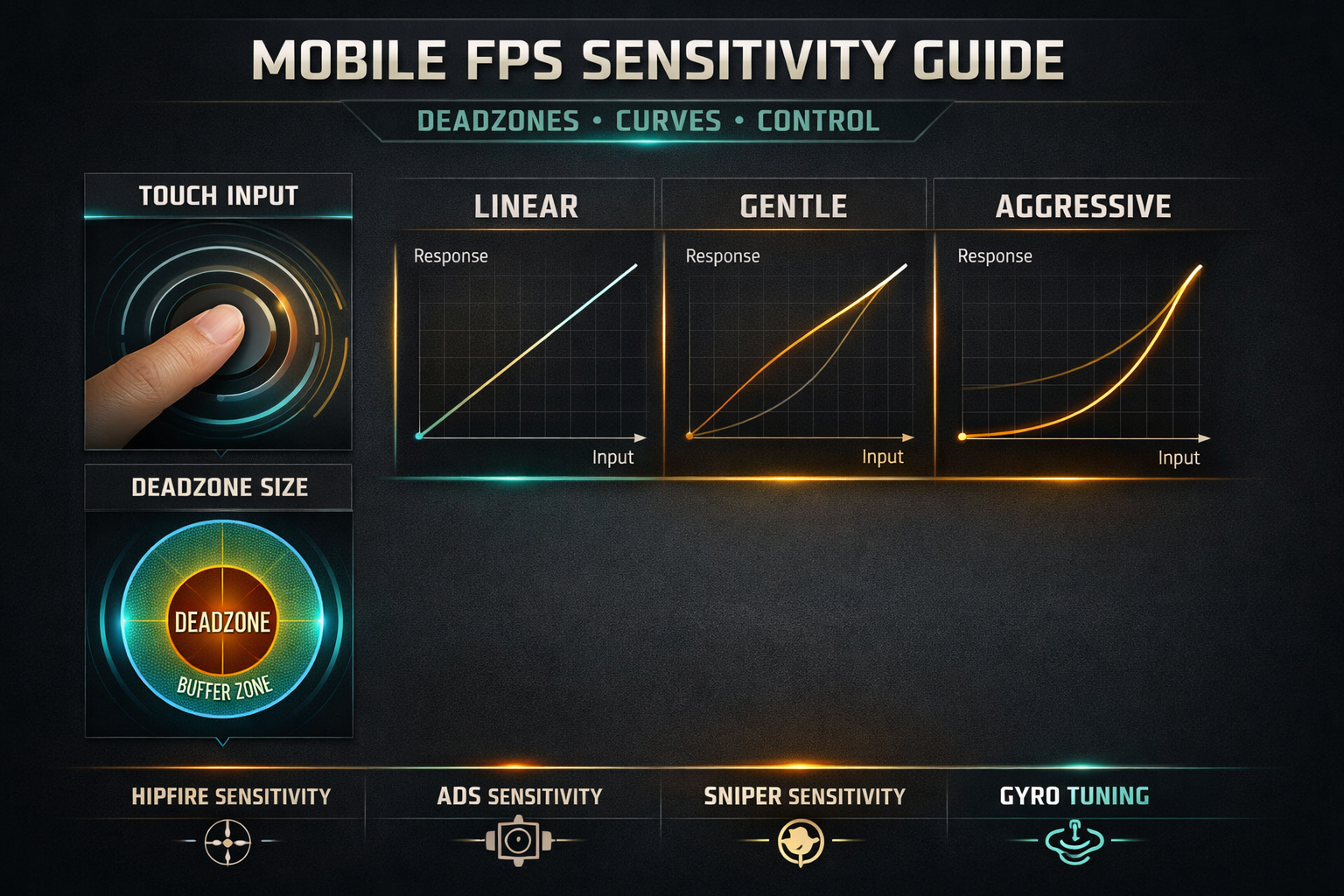
- Stable medium-range tracking.
- Calm optic control.
- Recoil readability over long sprays.
- Less panic correction when targets strafe in open space.
That often means more restraint, especially on zoomed ADS layers. The mistake many BR players make is using a Multiplayer-style ADS feel that is too jumpy once magnification and distance increase.
If you mainly play both modes, build around the mode you care about most and make only mild second-mode adjustments. A unified setup is usually better than maintaining two totally different aim identities unless you play each mode very seriously and have the discipline to keep them separated.
Hidden Hardware Factors That Change Your Aim
Players love discussing sensitivity values and almost never discuss the physical environment that changes those values. Yet on mobile, hardware and hand feel matter constantly.
Screen Friction
A dry clean screen feels different from a greasy one. A matte protector feels different from glossy glass. Thumb sleeves change drag. Humidity changes everything. If your screen friction swings wildly, your aim will too.
Heat and Performance Stability
A device that gets hot may hold the same settings but not the same feel. Lower frame stability makes tracking harder and can tempt you into needless sensitivity changes. Always separate “input problem” from “performance problem.”
Refresh Rate and Visual Clarity
More refresh is usually helpful if your device can sustain it cleanly. But stable clarity matters more than flashy peak settings. A stable mid-high environment often beats a higher setting that heats the device and causes dips.
Grip Pressure
If you squeeze the device harder in ranked than in casual matches, your thumb path changes. That affects micro-control. Relaxed hands are faster learners than tense hands.
Case Thickness and Weight
A thick case can alter the angle of your fingers and the balance of the device. Tablets especially can feel very different depending on whether they are hand-held, propped, or supported.
Field of View and Visual Perception
Without turning this into a separate FOV guide, remember that what you see changes what sensitivity feels like. A wider view can make movement appear slower. A tighter view can make the same input feel quicker. Keep visual settings stable while you test aim.
For official game information and update-aware resources, it is worth checking the official Call of Duty: Mobile page, the official mobile guides hub, and Activision Support. Even if your sensitivity philosophy stays timeless, knowing where the game’s settings language lives can help when menus or options shift.
Sensitivity Myths That Hold Players Back
“Higher sensitivity means higher skill.”
No. High sensitivity means less movement is required. Skill is whether you can stop accurately, track consistently, and repeat under pressure.
“You should never change settings once muscle memory starts.”
Bad settings do not become good through loyalty. What matters is structured adjustment, not stubbornness.
“Pros use one secret best setup.”
Top players share trends, not one magic number. Their setups reflect device, role, grip, and years of adaptation.
“If you miss, lower everything.”
Misses come from different causes: poor centering, panic movement, overaim, underaim, recoil misread, bad layout, or visual instability. Blindly lowering settings can fix none of them.
“Gyro is only for advanced players.”
Gyro is a tool. It can be used simply or deeply. The question is not whether it is advanced. The question is whether it improves your control.
“Phone players can’t have precise aim.”
They can. The tradeoff is not “precision versus no precision.” It is how precision is built under tighter physical space.
Final Setup Checklist
- Your layout feels natural before you start tuning sensitivity.
- Your device can hold a stable performance profile for real sessions.
- Camera sensitivity lets you clear angles and react without panic overshoot.
- ADS sensitivity feels calmer than camera and stops cleanly on target.
- Higher zoom layers feel progressively more controlled.
- Movement deadzone, if relevant to your input path, is low enough for responsive strafing but high enough to prevent accidental drift.
- Any curve-like behavior feels readable from small correction to large turn.
- Gyro, if enabled, supports your mechanics instead of hijacking them.
- You test with notes instead of random emotional changes.
- You give each meaningful adjustment enough reps to judge fairly.
If you can say yes to those points, your setup is already ahead of most ranked players who keep changing numbers without changing habits.
FAQ
What is the best CoD Mobile sensitivity for phone players?
There is no universal best setting. Most phone players do well with a camera layer that feels responsive in close turns and an ADS layer that is calmer and easier to stop. The correct setup is the one that matches your grip, device size, and weapon style.
Should tablet players use lower sensitivity?
Often yes, but not always. Tablets provide more swipe space, so many players naturally prefer calmer ADS and optic control. The important point is not “lower” by itself, but whether your larger physical motion remains predictable.
Does gyro improve aim in CoD Mobile?
It can. Gyro helps many players with recoil control and fine corrections. But it only works well if your posture and device handling are consistent enough for the extra input layer to stay stable.
How often should I change sensitivity?
Only when your notes show a repeatable problem. Do not tune based on one frustrating session. Change one layer at a time, test it, and keep a written record.
What matters more, sensitivity or layout?
Both matter, but layout often comes first. A bad layout can make a good sensitivity feel terrible by disrupting your thumb path and creating accidental input.
Are deadzones important on touch devices?
Yes, though they matter differently than on controller. Movement-stick behavior, initial thumb response, and accessory input can all create a delayed or mushy first reaction if not tuned well.
Conclusion
The best CoD Mobile sensitivity guide is not a screenshot of somebody else’s values. It is a way of thinking. Start with physical reality: phone or tablet, grip, posture, swipe space, and layout. Then build your sensitivity like a system. Camera for arrival. ADS for control. Zoom for calm precision. Deadzones for clean response. Curves for readable acceleration. Gyro only if it truly improves your corrections.
When you tune that way, you stop chasing random fixes. Your aim begins to feel consistent from match to match. Your centering becomes cleaner. Your recoil control stops looking panicked. And ranked fights feel less like coin flips and more like decisions you can trust.
That is the real purpose of sensitivity tuning in CoD Mobile. Not to look fast for one clip, but to make your mechanics dependable across every session.
Build slow, test honestly, and let consistency beat hype.